
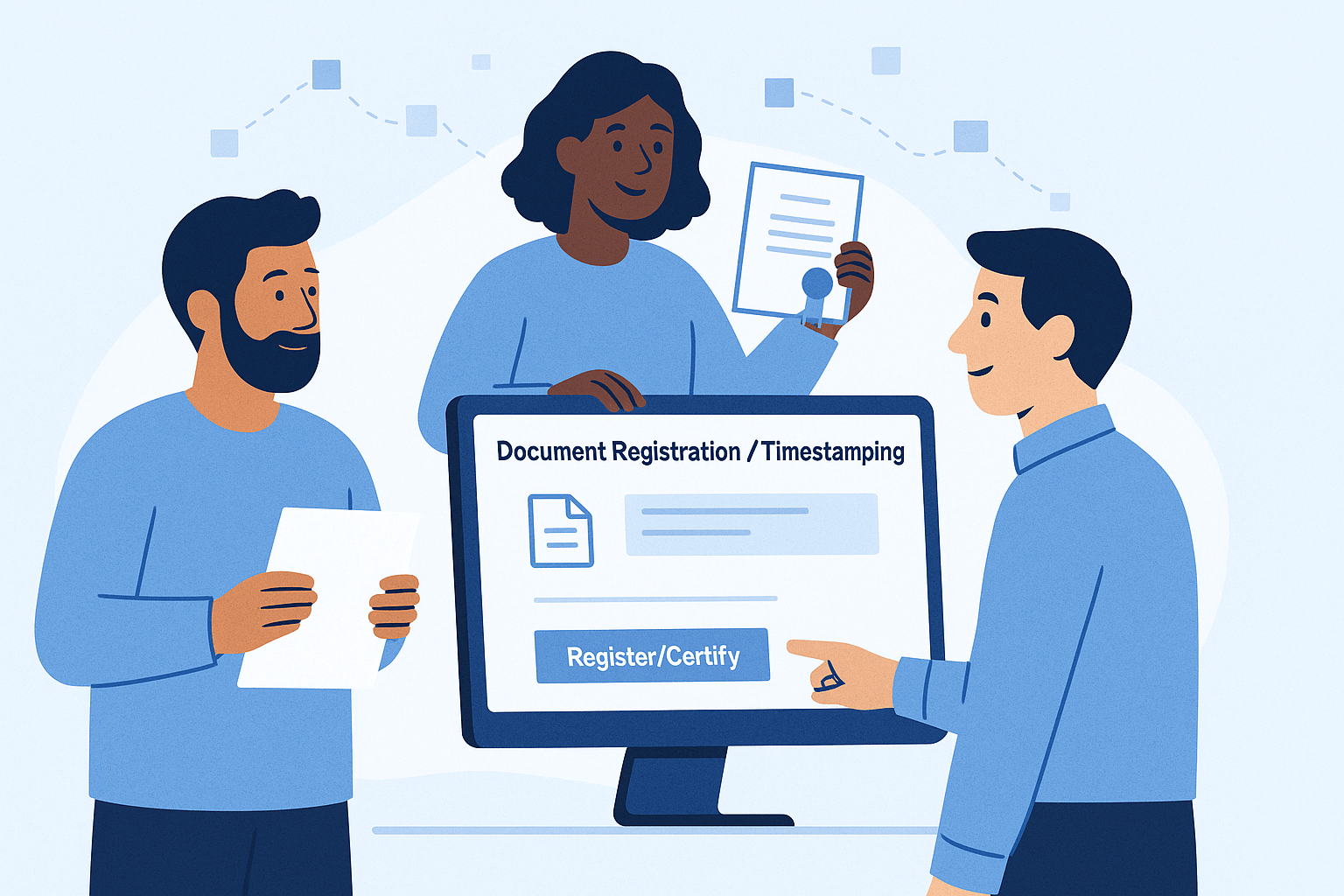
LutinX allows you to create verifiable, blockchain-based proof of existence, authorship, and ownership for your digital files.
This guide explains the three most common actions you can perform directly from your personal Dashboard — no advanced setup required.
Open your Dashboard.
Enter the Document Registration / Timestamping area (you find it as L.STAMP).
Upload your file (PDF, JPG/PNG, DOCX, ZIP, MP4, etc.).
Add a title/short description so you can find it later.
Complete all the required fields, choose the category, and select the Creative Commons license if applicable.
Sign in the designated box.
Click Register/Certify.
Wait for the success message — your proof (hash + date/time) is now recorded on blockchain.
Download the certificate/proof file if available, and keep it together with your originals.
Good to know: If a file won’t upload, try renaming it (no special characters), compressing it, or checking your connection.
From the dashboard, open the CZone.
Upload the work (file or ZIP) and add the essential details (title, author/owner, notes).
Review and confirm.
Save the certificate/proof provided after registration.
When to use this: books, articles, scripts, songs, mixes, photos, artwork, designs, brand assets, UX/UI files, source code.
Go to My Registrations / Certifications (Download area showing previous uploads).
Open a record to view timestamp details (date, time, hash).
Use the Download or Share options provided there to keep a local copy or share evidence as needed.
Tip: Keep your original file unchanged after certification. If you edit it, certify the new version too.
Always keep a backup of your original files before registration.
Use clear, consistent titles so you can easily identify files later.
Avoid registering temporary or incomplete drafts — each record counts toward your quota.
If multiple team members work on the same project, decide who will be the official owner/registrant.