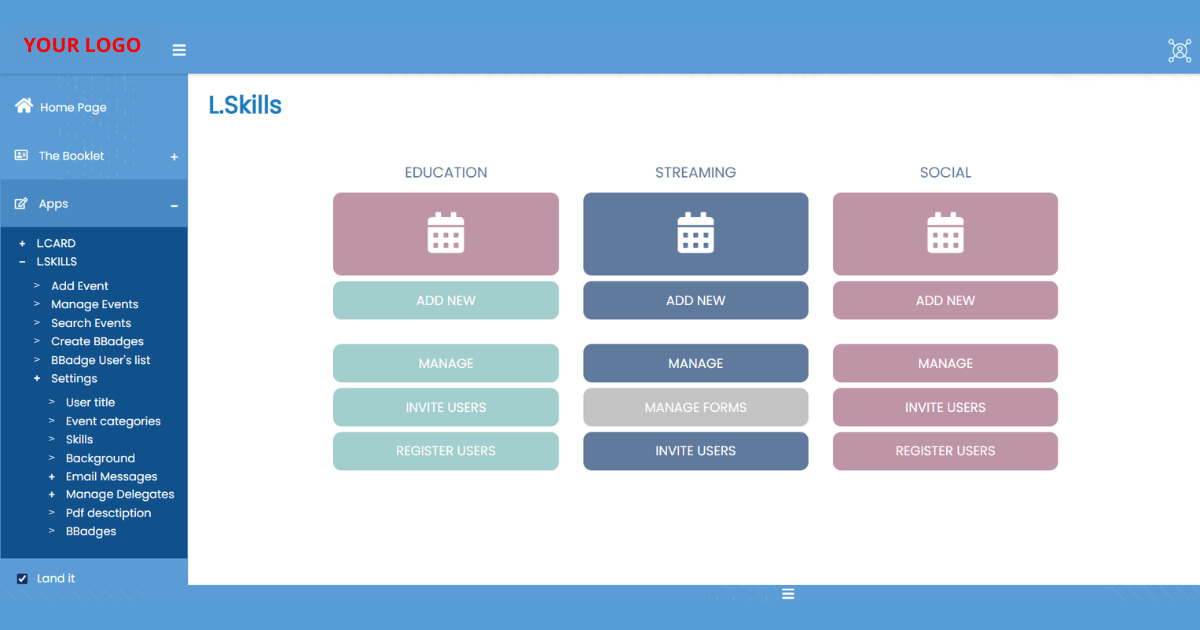
How to Use L.Skills application
Step 1 — Create or access your Company Account
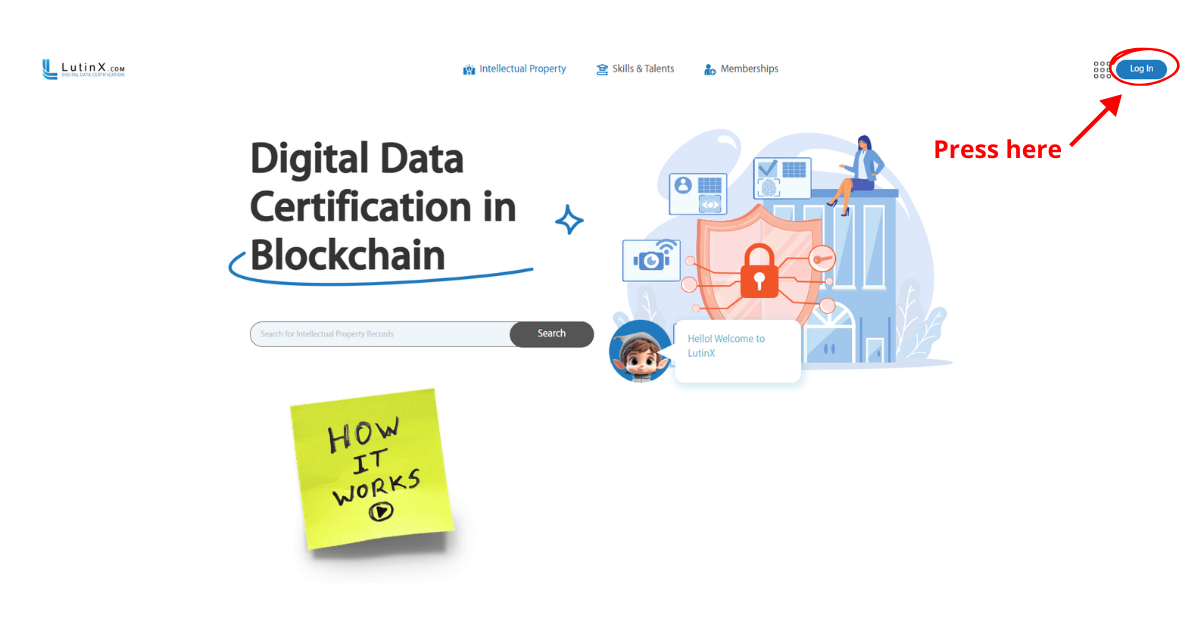
First, the organization needs a LutinX company account.
Log in with your corporate credentials to access the main dashboard.
Note:
L.SKILLS is available only for organizations with a valid license.
If you are creating a new company account, make sure to complete the KYB (Know Your Business) verification and purchase a Business License that includes the L.SKILL application.
Only after these steps will L.SKILLS be available among your applications.
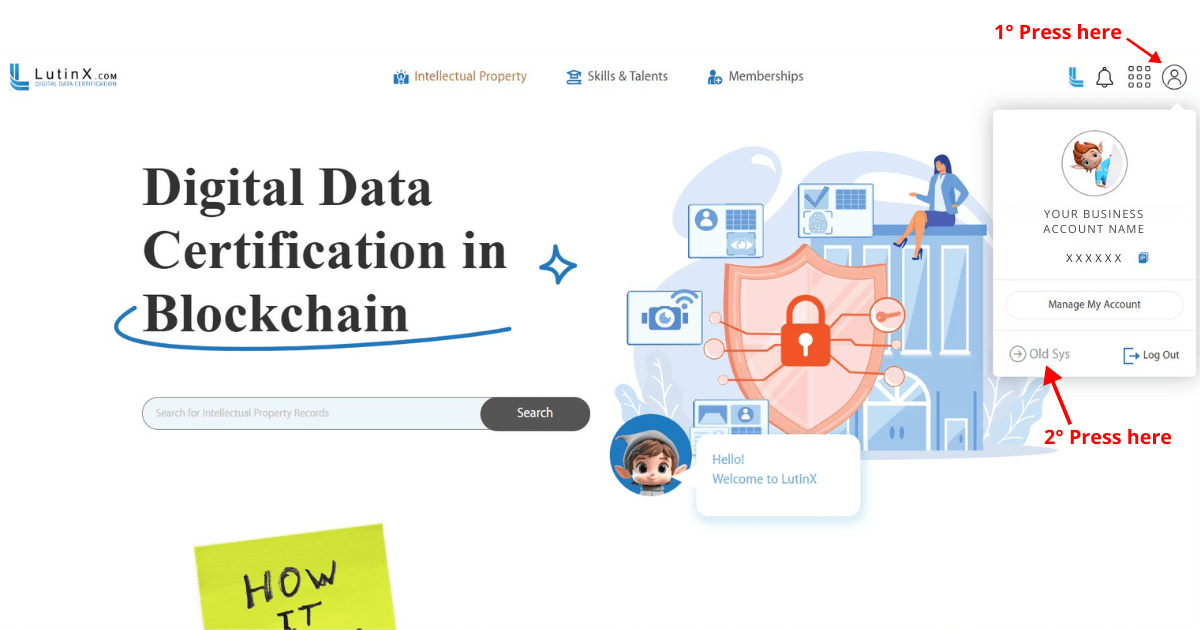
Step 2 —Where you can find the L.SKILLS application
From the main account area, open the old system using the dedicated button.
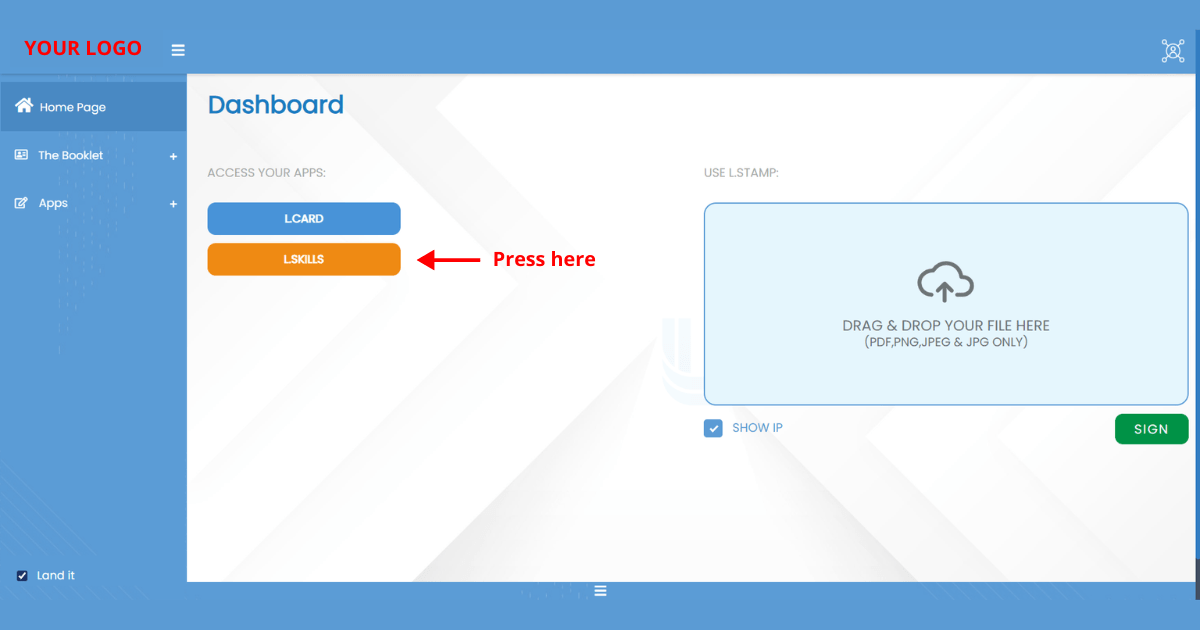
Step 3 — Access L.SKILLS from the dashboard
From the dashboard, select L.SKILLS.
Here authorized staff (HR, trainers, instructors) can manage:
learners and employees
programs, courses, or training groups
batch issuing of digital credentials
Step 4 — Open the L.SKILLS Application
You will see the three operational modules:
EDUCATION
Used for academic courses, lessons, exams, training programs, certifications.
STREAMING
Used for webinars, online courses, remote exams, synchronous sessions.
SOCIAL
Used for events, participation, seminars, workshops and community activities.
Step 5 — Add a New Activity (Education, Streaming, Social)
Click ADD NEW in the chosen module.
You can create:
Each activity can later issue skills or BBadges to participants.
Step 6 — Manage Events and Activities
Using MANAGE, administrators can:
view ongoing and past events
update activity details
track attendance and participation
access user lists
manage groups or classes
link events to specific BBadge templates
This menu is where most daily operations take place.
Step 7 — Invite or Register Users
Note:
Each user is not required to complete KYC in order to receive a digital credential.
However, KYC verification is strongly recommended, as it allows the user to obtain the certified blue check mark, similar to verified profiles on social platforms, improving trust and identity confirmation.
Step 8 — Manage Forms (Streaming module only)
In STREAMING, you will find MANAGE FORMS.
This allows administrators to:
Forms can be linked directly to BBadge generation.
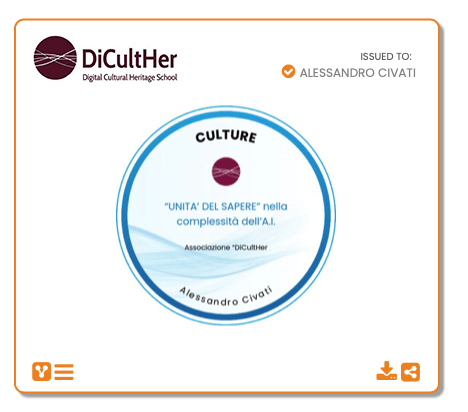
Step 9 — Create BBadges (Digital Credentials)
From the left-side menu, select Create BBadges.
Here you can:
design new digital credentials
define skill categories
assign the issuer (your organization)
choose visibility and verification options
connect the credential to specific events or courses
Each BBadge automatically receives:
a Blockchain timestamp
a verification link
a hash
optional QR code
Step 10 — Issue Credentials (BBadges) to Users
Once an event or skill is complete:
Open L.SKILLS
Select the event
Choose Issue BBadges / Assign Skills
Select the participants
Confirm issuance
Each user receives:
the credential in their profile on the BOOKLET app
email notification (if enabled)
a public verification link
Step 11 — Manage Skills and BBadges Over Time
In the left menu under Settings, you can:
manage skill categories
customize your BBadge templates
update branding/background
configure communication emails
manage delegates who can issue credentials
This allows full customization of the organization’s digital credentialing system.
Step 12 — Verify a Digital Credential
Every skill or badge issued through L.SKILLS can be verified through:
Verification confirms:
the issuing organization
recipient identity
skill or achievement
timestamp and integrity