
CZONE is the LutinX application dedicated to authorship registration and intellectual property protection.
It allows users to certify the creation date and ownership of any digital work — such as text, image, video, design, or software file — through a verifiable Blockchain record.
Once a file is registered, CZONE issues a Certificate of Authorship and Registration, which serves as permanent legal proof of ownership.
CZONE applies a Blockchain timestamp and a cryptographic hash to every uploaded file, creating an immutable digital fingerprint.
This process ensures that the file’s content, author, and creation date are permanently recorded and can be verified at any time.
Key functions include:
Registration of authorship and intellectual property
Certification of originality and ownership
Prevention of plagiarism or unauthorized copying
Verification through the public LutinX Explorer
Generation of a downloadable Certificate of Authorship
Log into your LutinX account, or register for free if you don’t have one.
Private users start with 10 registrations, which can be upgraded to 30 by completing KYC.
If you are a business or professional, you will need to purchase a license suitable for your usage.
(👉 go to licenses page).
👉 Tip: completing KYC unlocks more registrations and speeds up access to advanced features.
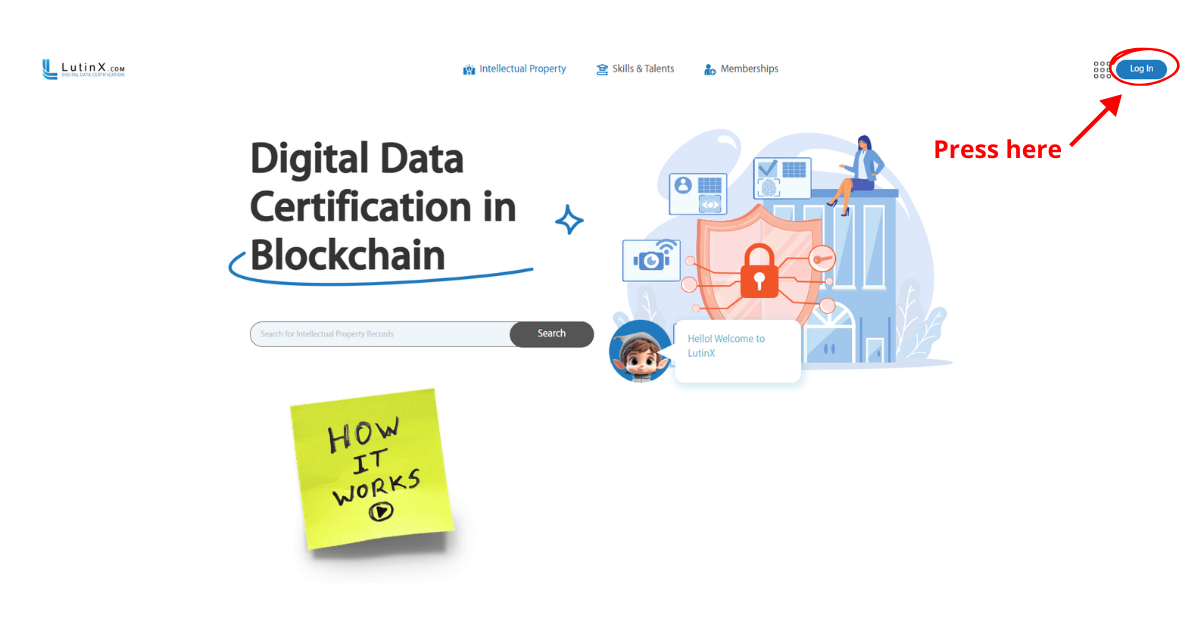
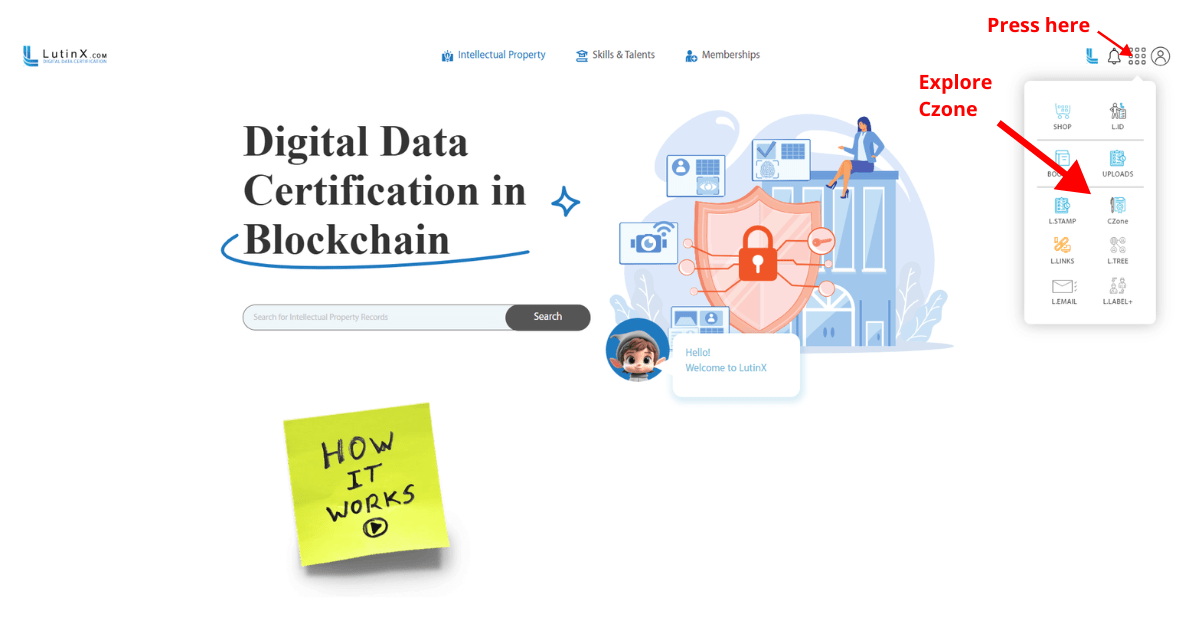
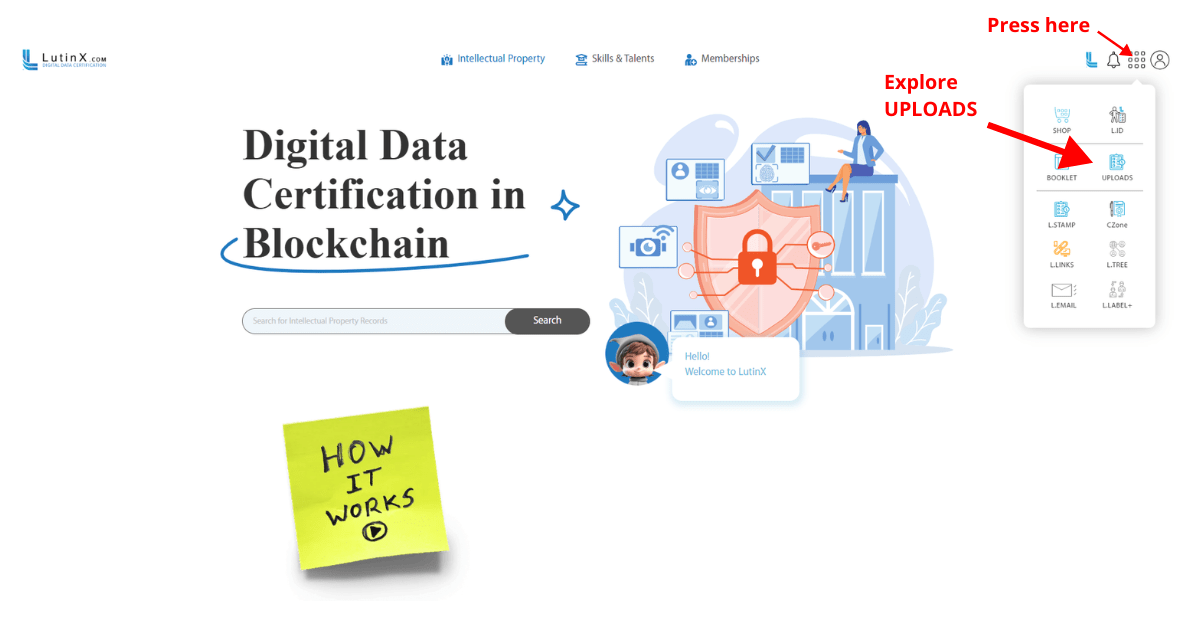
From your main dashboard, click the app menu and select CZONE.
Generates a complete authorship/paternity certificate.
Includes author details, file hash, blockchain ID, digital signature, and legal timestamp.
Recommended for final works, publications, artworks, software, or anything you want to share and officially register under your name.
This certificate will later allow you to transfer ownership or add specific CCommons licenses.
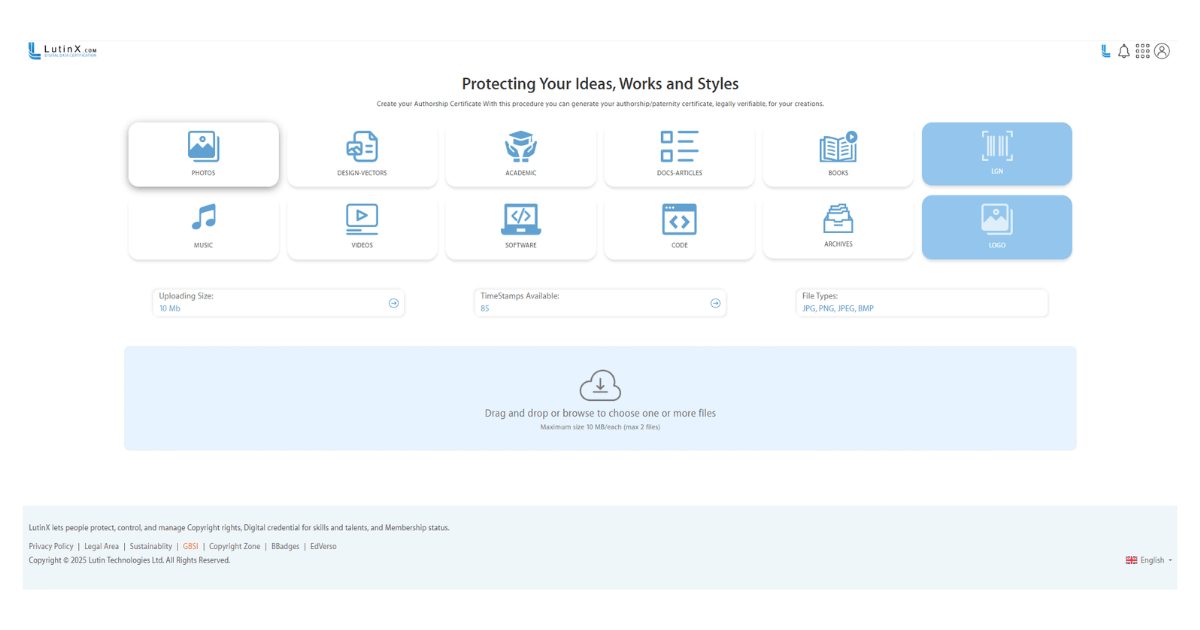
CZone offers a grid of categories to better classify your work (screenshot: Protecting Your Ideas, Works and Styles):
📷 Photos – photographic works, images, visual shots.
🎨 Design & Vectors – illustrations, graphics, vector projects.
🎓 Academic – research papers, theses, educational content.
📑 Docs & Articles – professional documents, reports, articles.
📚 Books – e-books, manuscripts, literary works.
🎶 Music – songs, soundtracks, audio files.
🎬 Videos – films, short videos, creative productions.
💻 Software – applications, programs, executable files.
👨💻 Code – source code, scripts, databases.
🗂 Archives – compressed files, grouped projects.
🖼 Logo – personal or corporate logos.
🔗 LGN (LutinX Global Number) – the new ISBN for books and publications (magazines, journals).
TIPS:
👉 Choosing the correct category ensures your certificate displays the work consistently across CZone, and adds clarity when the QR code, blockchain record, or certificate is shared with third parties.
👉 Cover image: prepare a 600×600 px cover (JPG/PNG). This will appear on your certificate and QR preview. If you skip it, the system default will be used.
👉 Prohibited content: do not upload illegal materials or works that infringe third-party rights.
Check the info bar below before uploading:
Uploading Size (10 MB max each)
Timestamps Available (your remaining balance)
Accepted File Types (JPG, PNG, PDF, DOCX, AI, PSD, MP3, MP4, ZIP, etc.)
Drag and drop your files into the upload box, or browse manually.
👉 Best practices:
Always upload the original version .
Notarize each new version of your work for clear history.
If your format is unsupported, compress it into a ZIP archive.
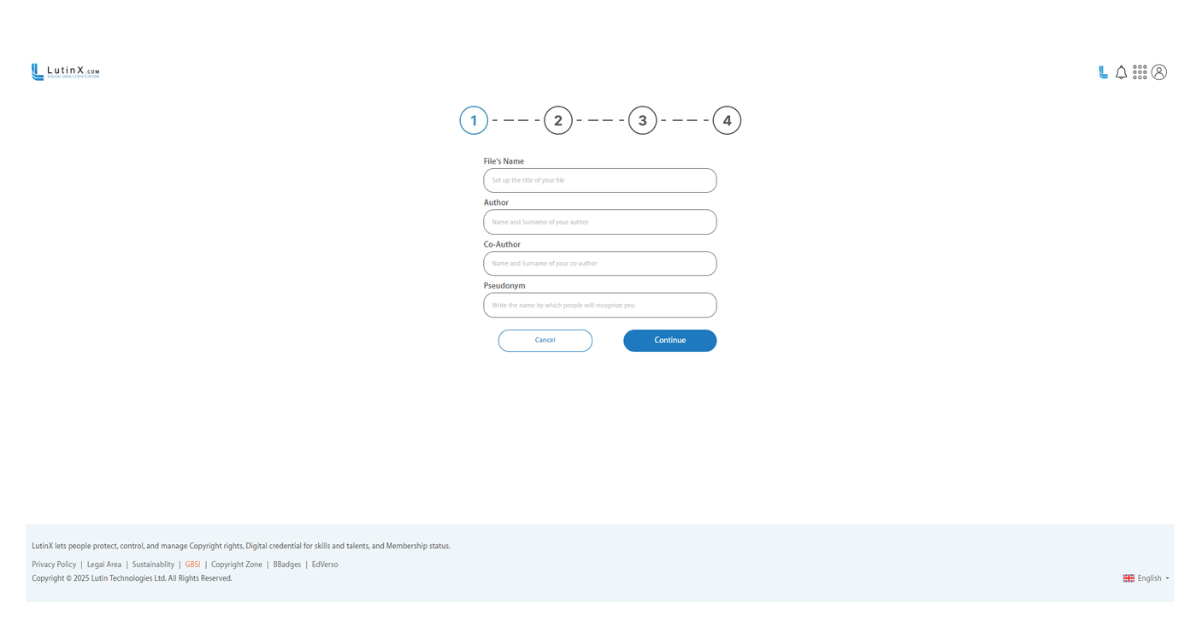
When creating an Authorship Certificate with CZone application, the system will guide you through several steps to enter the metadata of your work. This information will appear in your blockchain certificate and ensures that your file is correctly attributed and legally verifiable.
Here you need to enter the main information about your creation:
File’s Name – choose a clear and descriptive title for your file.
Author – your full name.
Co-Author – (optional) if the work was created with someone else.
Pseudonym – (optional) the name you want to be recognized with, if different from your real name.
Click Continue to proceed.
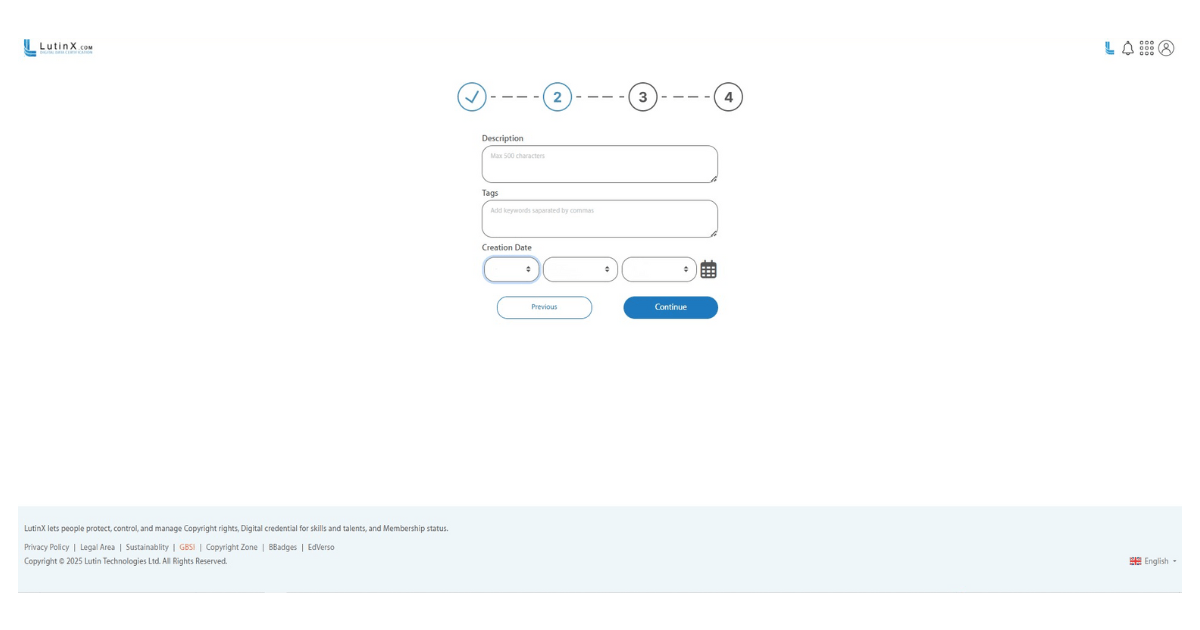
In this step, you can enrich your registration with more context:
Description – add a short description (up to 500 characters) that summarizes your work.
Tags – insert relevant keywords (comma separated) to categorize your work.
Creation Date – indicate the date when the work was originally created.
This information helps in cataloguing and makes your certificate easier to identify and search.
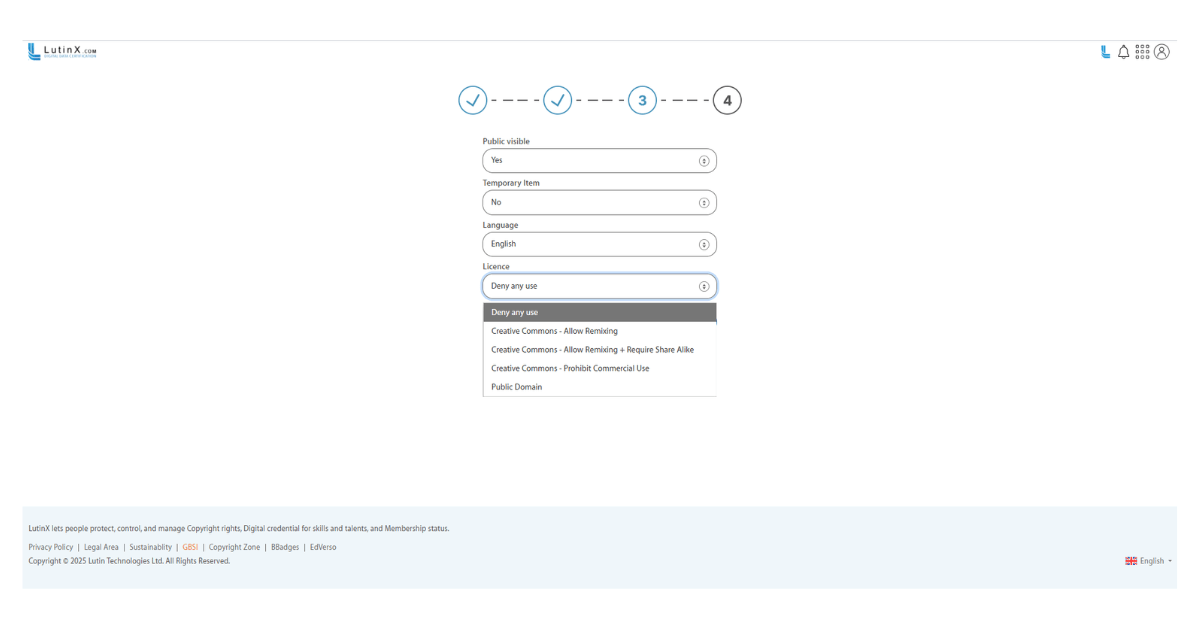
Here you define how your work can be shared and used:
Public Visible – choose if your certificate is visible publicly or kept private.
Temporary Item – decide if the registration is temporary.
Language – select the language of your work.
License – choose among different usage rights:
Deny any use
Creative Commons – Allow Remixing
Creative Commons – Allow Remixing + Require Share Alike
Creative Commons – Prohibit Commercial Use
Public Domain
👉 This step is crucial to define how others can interact with your creation.
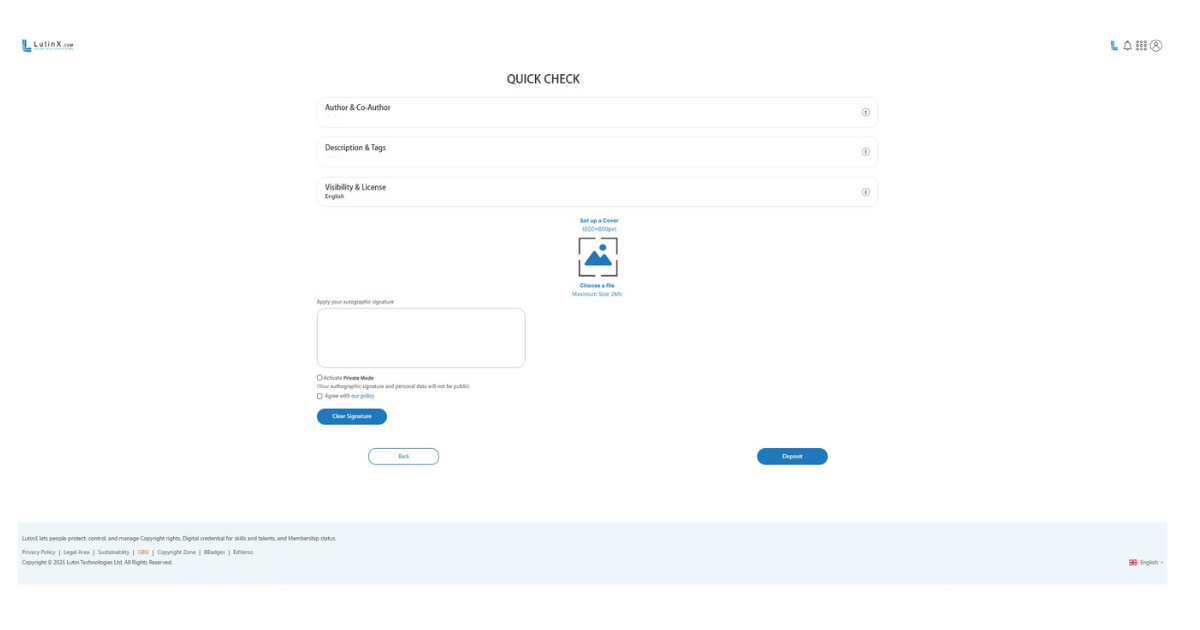
The last screen allows you to double-check all your data before finalizing:
Summary – review Author, Co-Author, Description, Tags, Visibility, and License.
Cover Image – upload a cover (600x600px, max 2MB) to visually represent your work. If you don’t, the system will assign a default image.
Signature – add your autograph signature. You can also activate Private Mode if you don’t want the signature and personal details to be visible publicly.
Agreement – confirm you agree with the policy.
Once everything is set, click Deposit to generate your Authorship Certificate on blockchain.
👉 At this point, your certificate will be created, including Blockchain ID, Timestamp, File Hash, Author Information, and Digital Signature. You can find it anytime in your Uploads dashboard.
CZone application will:
Generate the hash of your file.
Register the hash and timestamp on blockchain.
Issue your certificate with metadata and QR code.
The process is instant and typically completes in seconds.
To manage or share your certificates:
Open the Uploads app from your dashboard.
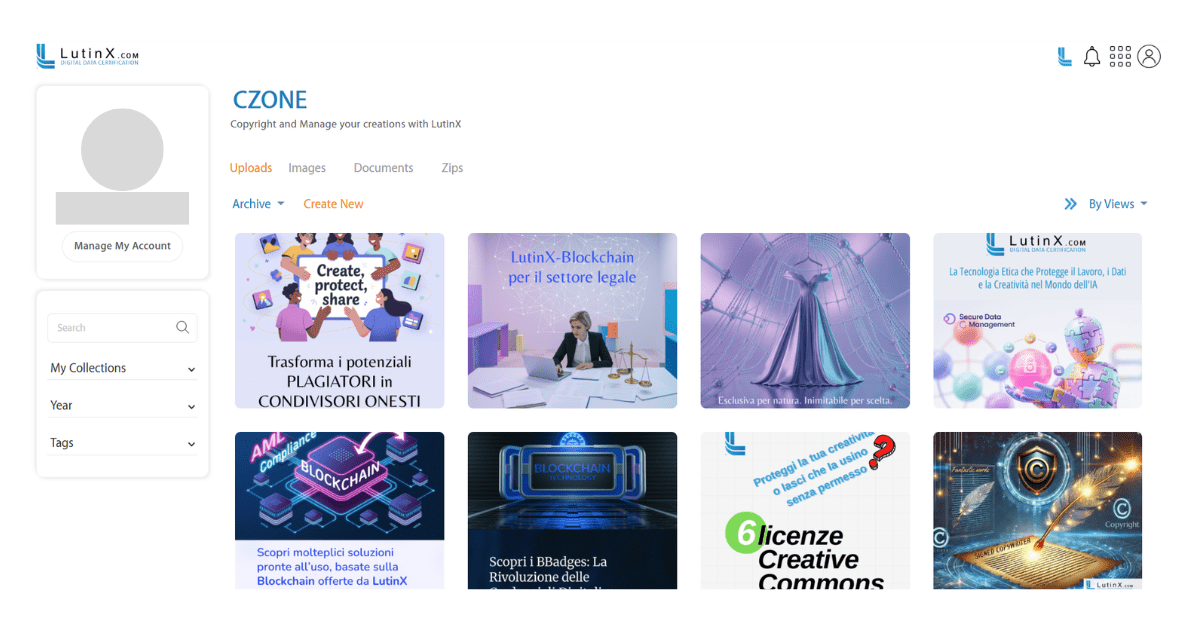
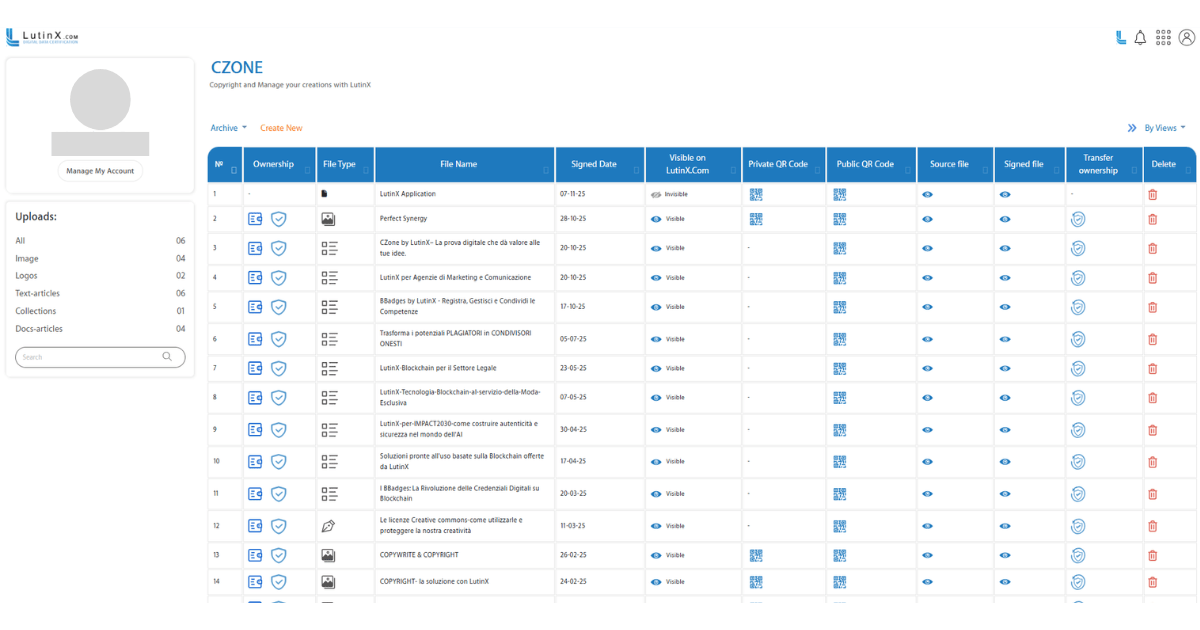
2. Browse your list of notarized works.
The Block View:
The List View:
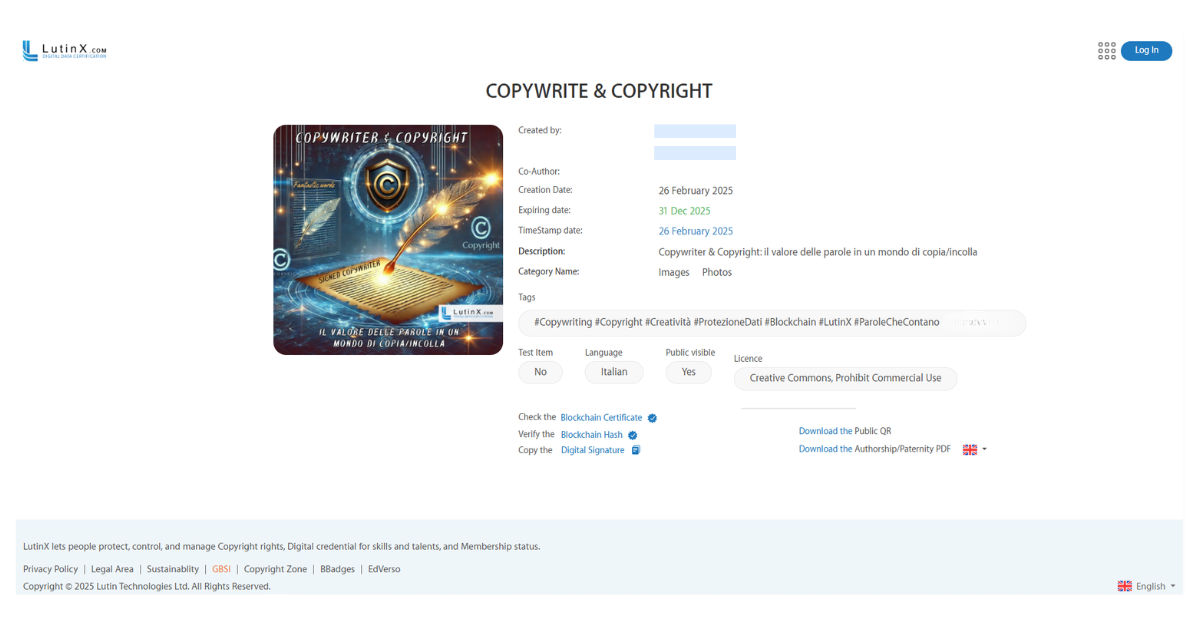
3. Click on a certificate to view:
QR code (for instant verification)
PDF certificate (download/print)
Blockchain hash
Timestamp
Digital signature (if applied)
Metadata and cover image
From here, you can share your work publicly or download the PDF for safe storage.
All CZONE registrations are:
Stored on the LutinX Blockchain infrastructure
Compliant with eIDAS, GDPR, ISO 27001 / 27018, and the Berne Convention
Recognized in 175+ countries as valid proof of creation and ownership
CZONE application provides a simple and secure way to protect intellectual property and prove authorship of digital works.
From single creators to professional studios, the application offers a reliable Blockchain-based method to register, verify, and demonstrate originality at any time.
It is an essential tool for ensuring trust and legal validity in the digital era.
For practical examples of how CZONE is used across different creative and professional sectors: